Sample 05 — Images, Galleries, and Visual Comparisons
An illustrated guide to responsive figure sizes, captions, galleries, image viewing, downloads, and a keyboard-operable before/after comparison.
Source: https://lapotron.com/article/sample-images-and-galleries/
An image does not always need the full width of an article. A small diagram can sit comfortably beside the reading rhythm, while a gallery or comparison needs enough room to explore.
The three illustrations in this sample are original SVG drawings made for this guide. They show synthetic curves, not measured signals or a validated filtering method. Their matching axes make them useful for demonstrating presentation choices.
Start with an honest description
A standalone image uses ordinary Markdown. The text in square brackets describes what the image communicates; the local path points to a file in the notebook's media collection.
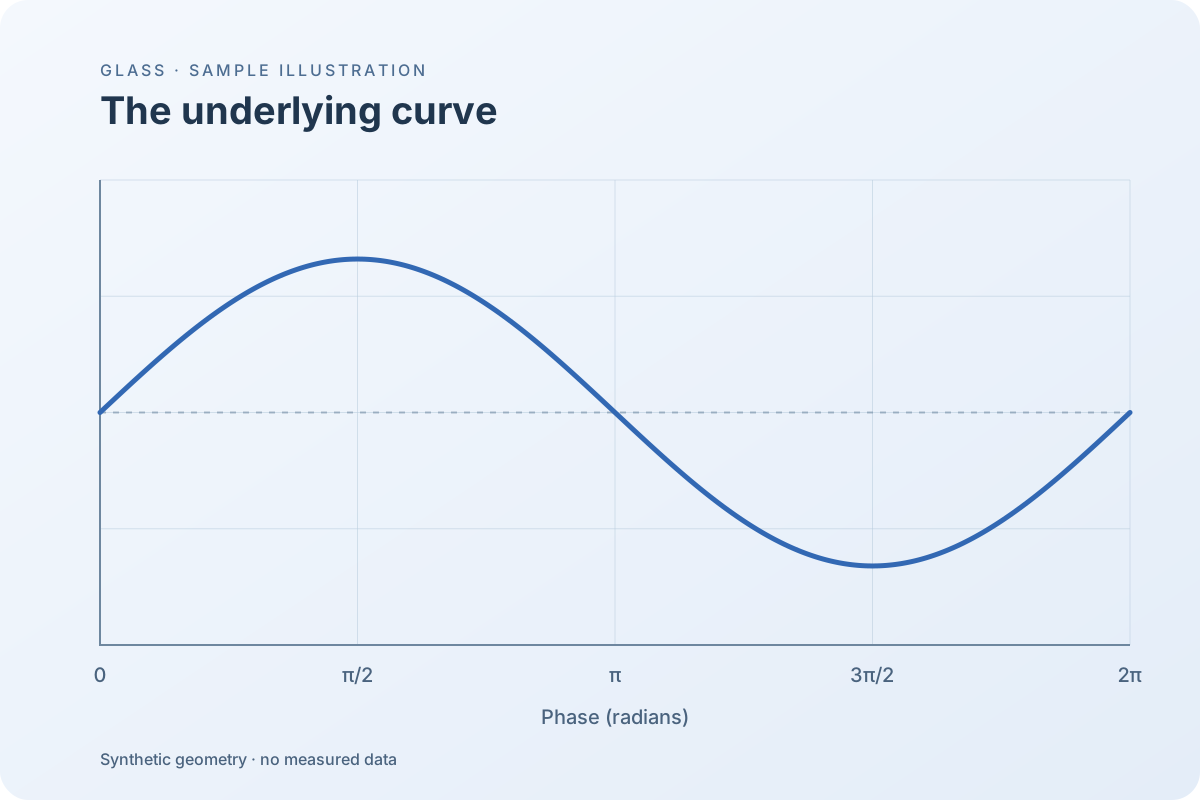
Alt text should explain the useful content rather than repeat “an image of.” If a visual carries an important relationship, describe that relationship in the surrounding paragraph too.
Give a figure a caption and a comfortable width
Wrap an image in figure to add a caption and optional sizing metadata. Here the width is capped at 480 pixels, and the image still shrinks to fit a phone.
:::figure[A complete wave, given room to breathe.]{#fig-sample-wave width="480" max-height="340" align="center"}
The centre line in Figure 1 helps compare positive and negative displacement. A label enables figure numbering and cross-references; an unlabeled figure keeps its caption without a number.
Display sizing changes the image's place in the article. It does not resize the original file or reduce the image viewer's available source.
Keep a portrait from taking over the page
A height cap is useful when the source is tall. The complete illustration remains visible with its original proportions; it is not cropped to force a rectangle.
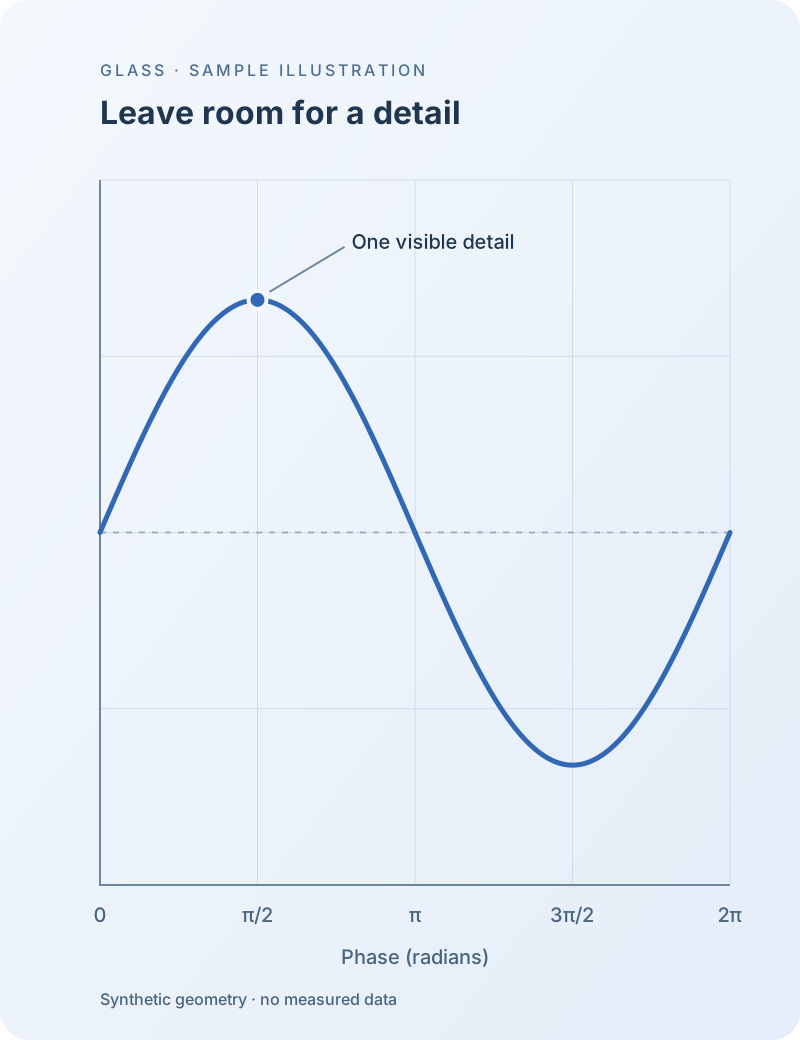
Left and right alignment position a sized figure within the reading column. They do not float later paragraphs around it. This keeps the article's reading order predictable on a narrow screen.
Use a percentage for a relative size
Pixel widths are useful for a known illustration size; percentages express a relationship to the prose column. Keep an image large enough for its labels to remain readable.
Supported widths are 64–2400 pixels or 10–100% of the prose column. A maximum height accepts 64–2400 pixels. These are bounded authoring attributes rather than arbitrary CSS.
Collect related images in a gallery
A gallery groups related images without turning the surrounding article into separate cards. Leave a blank line between the image paragraphs.
Try it: open a gallery image and move to the next one. Then close the viewer with Escape and return to the article. The embedded gallery remains useful when JavaScript is unavailable, with each image and its description retained.
Explore the dedicated image viewer
Open a figure or gallery image to inspect it in the shared viewer. Depending on the image and available information, the controls provide zoom, fit/reset, navigation, information and download actions. Keep zoomed images separate from the article's normal reading size.
The information panel describes the available file and dimensions. Camera or EXIF fields appear only when such information exists and is eligible to be published. These SVG illustrations have no camera data; a missing camera field should not be interpreted as a failed photograph upload.
Try it: open the portrait illustration, inspect its dimensions, download it, and close the dialog. The downloaded illustration should preserve the complete drawing rather than the smaller size selected for the page.
Compare two matching views
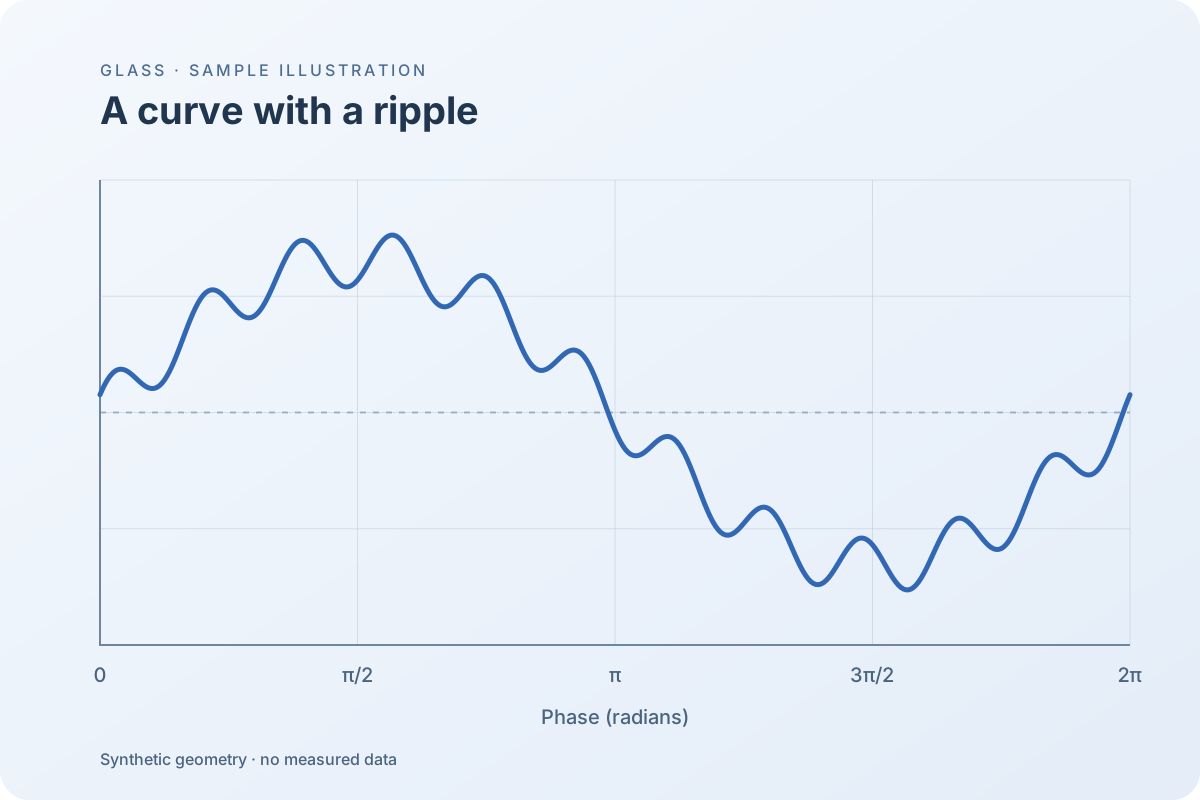
The image comparison widget uses two local media paths. Matching dimensions and aligned content make the moving boundary easier to interpret. The divider is a vertical line; moving it horizontally reveals more of one image.
"caption": "Two synthetic drawings on identical axes. Move the vertical divider to compare their shapes."A ripple and the underlying curve
Try it: drag the boundary, then focus it and use Left/Right, Home, and End. This changes the reveal position, not either file. The example demonstrates the comparison control; it does not claim that the second drawing was recovered from the first by a real filter.
Prepare a real upload in Studio
When replacing these illustrations with photographs, use Studio's media upload flow to review cropping and resizing. Check the final crop before insertion, write a meaningful description, and review which metadata should be public.
In Source edit, Image tools can add figure width, maximum height, and alignment while preserving the existing caption and label. Put an inline image in its own paragraph before applying standalone figure sizing.
Keep the page and its media portable
- Use canonical
/media/...references in the Markdown. - Keep captions in text so they remain selectable and printable.
- Use the smallest display size that keeps the important detail readable.
- Test a tall image as well as a wide image on a phone.
- Check viewer downloads independently from the embedded appearance.
The same article source can be built with local Pages assets or the site's configured media delivery. A change in delivery does not require rewriting the captions or manually substituting CDN addresses in every paragraph.